Most intake platforms stop at lead capture. A chatbot qualifies the prospect, a webform collects the details, Waypoint scores the case — and then what? The lead hits "request an agent" and enters a black hole. No queue. No visibility. No accountability. The firm that calls back in two hours loses to the one that called back in two minutes.
Today we're shipping the answer: the Case Compass Agent Workforce Platform.
This is a complete suite of tools for your intake team — everything they need from the moment a lead requests a live agent through the moment a retainer is signed. It lives inside the same Case Compass dashboard your team already uses. No new apps. No new logins.
Live Transfer Inbox: Every Lead, Every Agent, in Real Time
When a lead qualifies above your threshold and requests an agent — by phone, chatbot, or web form — they appear instantly in the Live Transfer Inbox. No delay. No manual routing. Every row in the queue shows the lead's name, intake form, wait time, current status, and assigned agent. Agents click once to claim and answer.
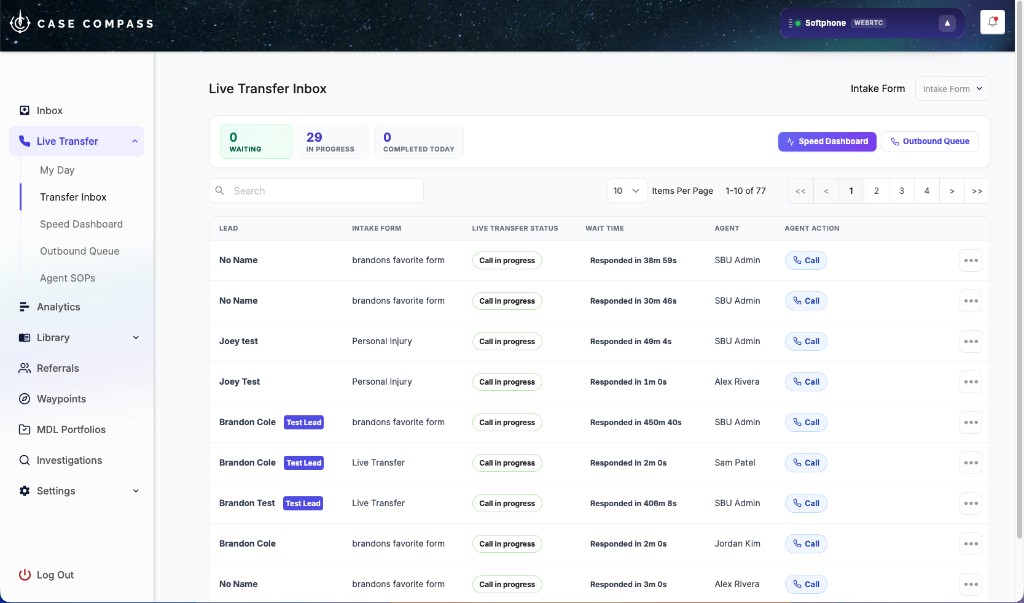
The Live Transfer Inbox — real-time queue with status badges, wait times, agent assignments, and instant call actions.
The queue updates the moment anything changes — no page refresh needed. Live counters at the top show how many leads are waiting, in progress, and completed today across your entire team. A supervisor glance tells you everything.
Instant, live updates
New transfers appear the moment a lead hits the request button. No polling. No refresh. Agents see the queue update in real time.
One-click claim & answer
Agents click "Chat with client" or "Call" to claim and answer. They're immediately taken to the full lead profile with complete context.
Full lead context on pickup
Lead name, intake form, wait time, conversation history, and SOPs are all pre-loaded. Agents walk into every call prepared.
Waiting · In Progress · Completed
Live counters above the queue show how many leads are waiting, in progress, and completed today — across all agents.
The Full Picture on Every Call
When a live transfer is answered or an inbound call connects, the lead profile opens with everything the agent needs on one screen. The live call or chat is on the left. The full intake conversation history is on the right rail — every question the bot asked, every answer the lead gave. No scrambling. No "let me pull up your file."
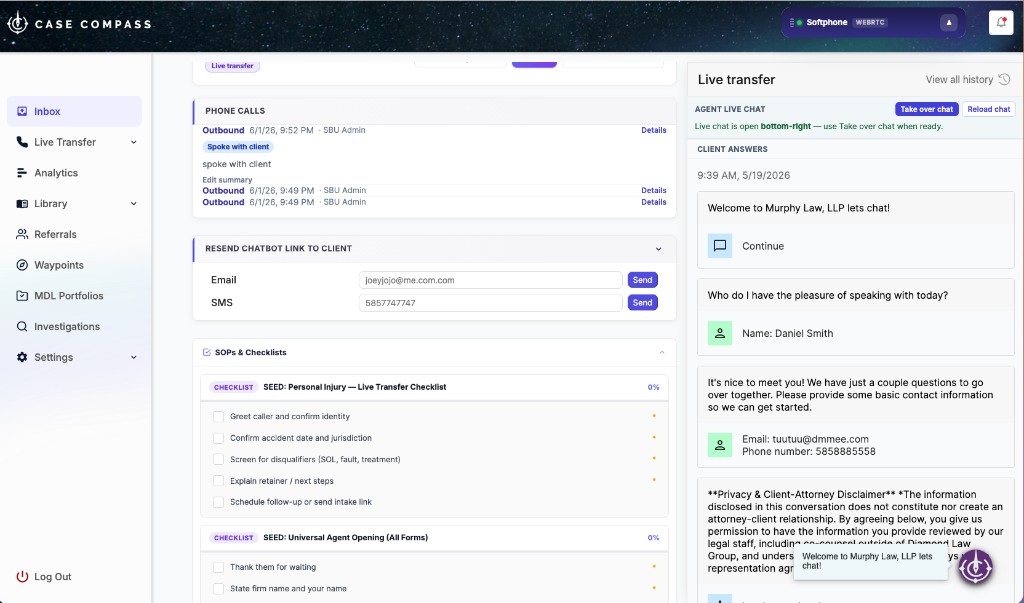
Lead profile during a live transfer — chatbot answers, call history, SOPs, and live agent chat in one view.
SOPs and checklists are embedded inline below the phone call history, so agents can reference the script and complete required steps without switching tabs. A "Take over chat" button lets an agent step directly into a bot conversation as a human agent. And with one click, agents can resend the chatbot link via email or SMS if the lead needs to resume later.
Browser Softphone with RingCentral
Your intake team can now make and receive calls directly inside Case Compass — powered by your existing RingCentral account. Connect in minutes from Settings. Choose your dial mode:
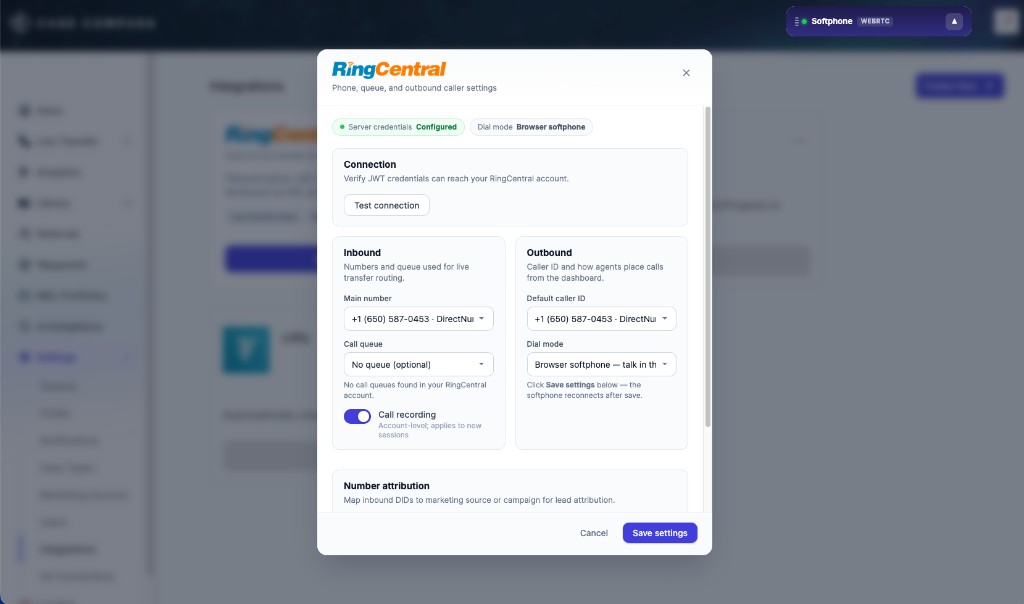
RingCentral integration settings — configure dial mode, inbound number, call recording, and caller ID in minutes.
Browser Softphone
Talk directly in any browser — no app required. A floating panel stays visible across every page. Mute, hold, and transfer built in.
RingOut
Bridges the call to an agent's desk or mobile phone. Works with any existing handset. All calls still logged and attributed.
Regardless of dial mode, every call is automatically logged to the lead, recorded, and attributed to the correct marketing source. When an inbound call comes in from a number that matches an existing lead, Case Compass routes the agent directly to that lead's profile. New callers land on the call intake screen with full context to start qualifying.
Zero extra cost for existing RingCentral customers
If your firm already uses RingCentral, connecting to Case Compass uses your existing account and phone numbers. No new licensing, no number porting. You're just adding intelligence on top of what you already have.
Agent SOPs & Checklists: The Right Script, Every Time
Intake quality is only as consistent as your least experienced agent having the right script at the right moment. Agent SOPs solve that by putting your firm's playbook directly in the agent's workspace — automatically, for every call.
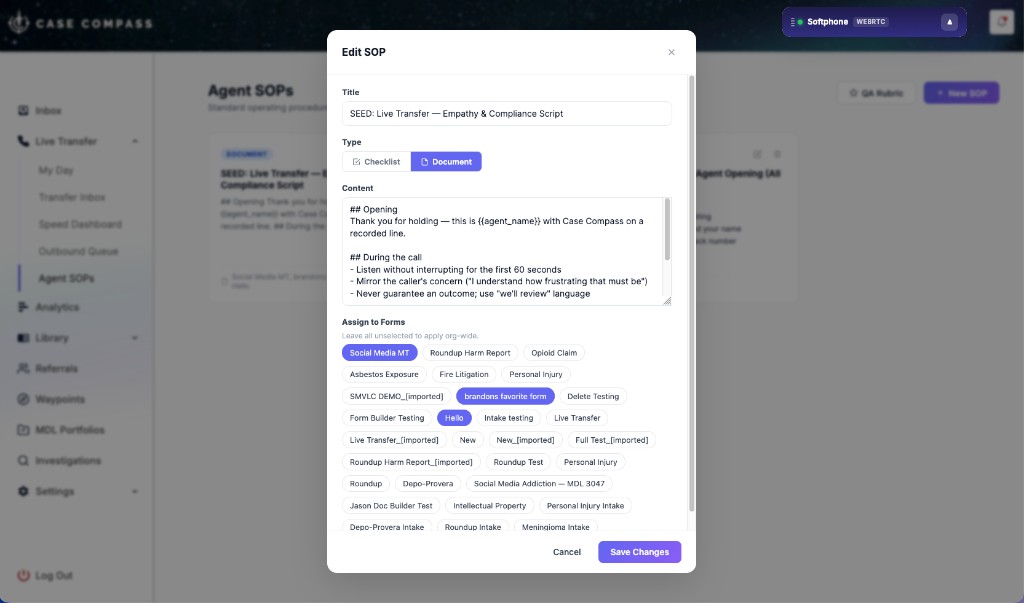
The SOP editor — create Document or Checklist type SOPs, assign to specific intake forms, publish instantly.
Two SOP types are supported:
- Document SOPs — rich text scripts with opening lines, objection handling, required compliance disclosures, and empathy language. Formatted for fast scanning mid-call.
- Checklist SOPs — step-by-step tasks with required fields and completion tracking. Supervisors see completion percentage across the team in real time.
SOPs are assigned at the form level. A personal injury agent gets the PI script. A mass tort agent gets the MDL checklist. Update a script and it publishes to the entire team immediately — no email chains, no retraining sessions. Every agent is on the same page the moment you hit save.
Speed-to-Lead Dashboard: You Can't Improve What You Can't See
The first firm to respond wins. Research consistently shows that lead conversion drops sharply after the first five minutes. The speed-to-lead dashboard gives supervisors a live, filterable view of exactly how fast their team is responding — and where the delays are coming from.
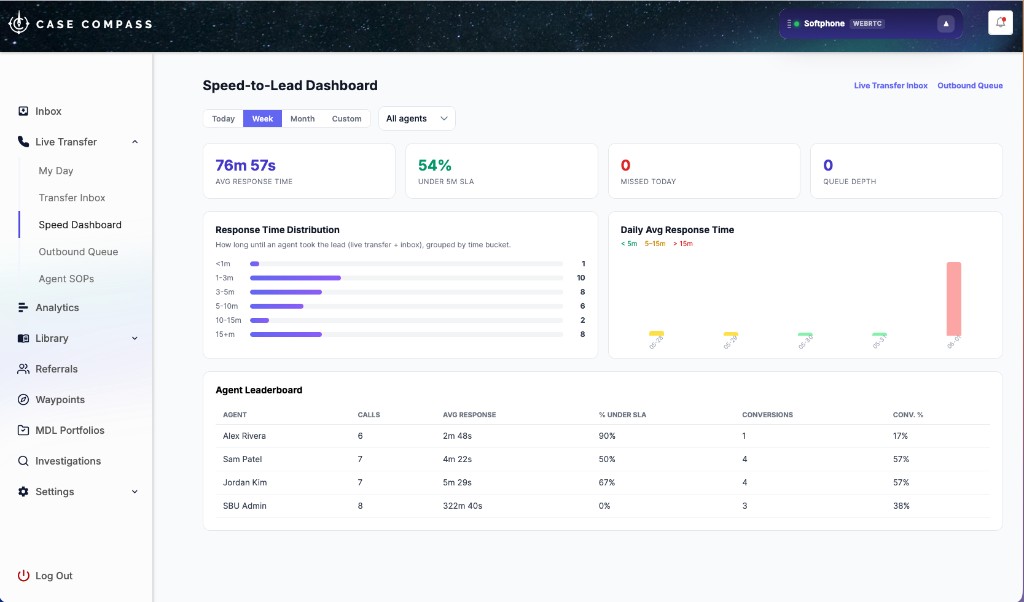
Speed-to-Lead Dashboard — avg response time, SLA compliance, response distribution, daily trend, and agent leaderboard, all live.
Avg. response time
How long leads wait before first agent contact — across today, week, month, or a custom range.
SLA compliance %
Set a target response window and see live what percentage of leads are being reached within it.
Response distribution
A histogram of <1m, 1–3m, 3–5m, 5–10m, 10–15m, 15m+ buckets shows exactly where delays cluster.
Daily avg chart
Rolling chart of daily average response time, color-coded by SLA tier, makes trends immediately visible.
Agent leaderboard
Per-agent breakdown: calls, avg. response, % under SLA, conversions, and conversion rate — in real time.
Queue depth & missed
Live counters for current queue depth and missed-today count — the metrics a supervising manager needs most.
Outbound Callback Queue: No Promised Callback Falls Through
Not every lead can be reached on the first attempt. The Outbound Callback Queue makes sure no promised callback is forgotten — and no agent is left without a clear list of what to work next.
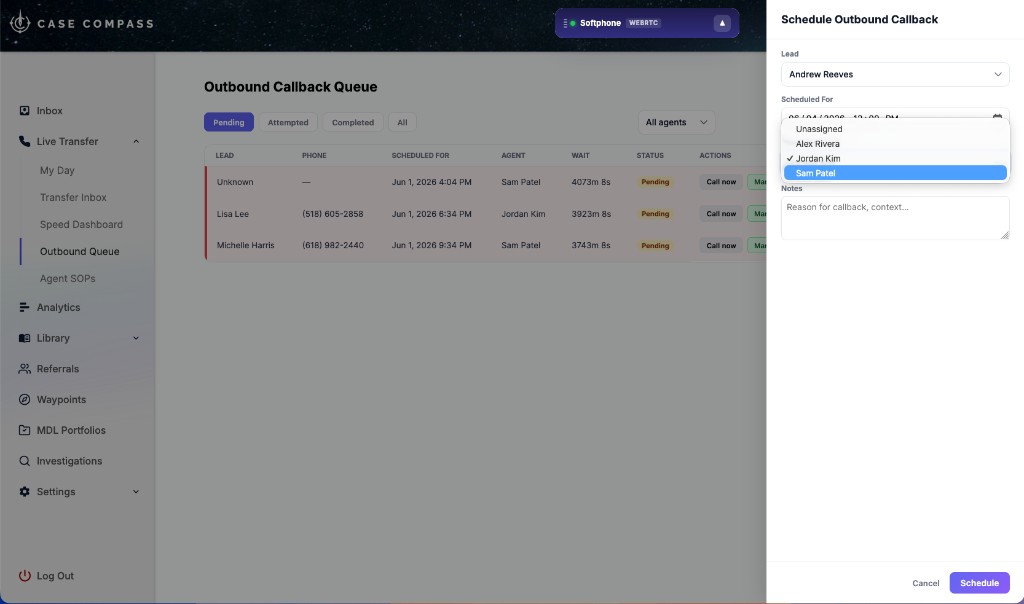
Outbound Callback Queue — schedule, assign, and track every callback. Elapsed wait time visible on every row.
Schedule a callback for any lead, assign it to a specific agent, set the time, and add context notes. The queue tracks three states: Pending, Attempted, and Completed — with elapsed wait time on every row so supervisors know which callbacks are aging and need reassignment.
Agents click "Call now" to launch the softphone directly from the queue. One click from the callback list to a live call with full lead context on screen. No number copying. No context switching.
Getting Started
The Agent Workforce Platform is available now for all Case Compass accounts. Here's how to activate each piece:
- Live Transfer Inbox — enabled automatically if your account has live transfer configured. Visit Live Transfers in your dashboard.
- RingCentral Softphone — go to Settings → Integrations → RingCentral. Enter your credentials, choose your dial mode, and configure your inbound number.
- Agent SOPs & Checklists — go to Agent SOPs in your dashboard. Click + New SOP, choose Document or Checklist, write your content, and assign to a form.
- Speed-to-Lead Dashboard — available under Reports → Speed to Lead. Filter by date range or individual agent.
- Outbound Callback Queue — available on any lead profile via the Schedule Callback action, or from the Callback Queue section in your dashboard.
Want a walkthrough?
If you'd like us to configure RingCentral, build your first SOP, or set up your SLA targets together, schedule 30 minutes with our team. We'll walk through your specific workflow and get everything live.
What's Next
We're continuing to build out the platform. Coming soon:
- SOP completion analytics — see which agents are completing checklists and which are skipping steps
- Outreach follow-up sequences — automated re-send to investigation contacts who opened but didn't submit
- Key date alerts — email notifications for approaching PSLRA and investigation deadlines
- Bulk lead qualification — select and status-update multiple investigation leads at once
Frequently Asked Questions
Do I need a RingCentral account to use the softphone?
Yes. The browser softphone and RingOut features both require an active RingCentral account. If your firm doesn't have one, contact us and we can help with setup. The integration uses your existing RingCentral numbers and plan — no additional licensing required from Case Compass.
Are calls automatically recorded?
Yes, when call recording is enabled in your RingCentral integration settings, all inbound and outbound calls are recorded automatically and attached to the lead's profile. Recordings are accessible from the phone call history section of any lead.
Can SOPs be assigned to specific practice areas?
Yes. Each SOP can be assigned to one or more intake forms — so a personal injury SOP only appears when an agent is handling a PI intake, and a mass tort checklist only surfaces for those cases. You can also create org-wide SOPs that apply to all forms.
Can supervisors see callback status in real time?
Yes. The Callback Queue is visible to all users with supervisor access. Every callback shows its current status (Pending, Attempted, Completed), the assigned agent, the scheduled time, and elapsed wait time since the original request. Supervisors can reassign overdue callbacks directly from the queue.
Is the speed-to-lead dashboard available on all plans?
The speed-to-lead dashboard is available to all Case Compass customers. Date range filters and the agent leaderboard are available on all plans. Contact us if you have questions about what's included in your specific plan.